How to Migrate Outlook Tasks from One PC to the Other or from Older Outlook Version to the Latest One?
Microsoft Outlook serves to be the best email management utility using which you can send or receive messages. This Outlook consists of many attributes like notes, emails, tasks, journals, calendar, etc. Tasks are one of the important Outlook features, which is very beneficial for professional users to list their work according to priority. You can even set an alarm as a reminder for your work. When you upgrade Outlook to the new version, you need to move all Outlook attributes including- tasks, emails, appointments, notes, etc. to the upgraded one without missing any vital Outlook data.
If you opt manual process of copying Outlook attributes, then it takes a longer time. If in case, the copy process is interrupted will lead to missing tasks and emails. Hence, you can avoid any glitches on moving the Outlook tasks and emails you can simply rely on the Migrate Outlook software. This utility offers an automated way to backup and easily migrate Outlook attributes including tasks, emails, journals, calendars, notes, etc. in no time.
Migration is mainly used to transfer Microsoft Outlook tasks and other attributes of the Outlook easily to upgraded Outlook version or from one PC to another, etc. To do this task, you need to employ this powerful Outlook Migration software. This application can Migrate tasks on Outlook in a proficient manner.
Under these circumstances we usually want to migrate our Outlook tasks:
- When your system hard drive crashes due to overheating, aging, improper usage or due to the bad sectors, etc. in such case you replace the disk. After replacing HDD you can migrate Outlook tasks, emails, contacts, etc. easily using migrate Outlook software in simple clicks
- When you wish to upgrade your Windows operating system, migration of the Outlook attributes including tasks becomes essential
- To add Outlook attributes to a new PC, you can migrate Outlook items easily instead of using the manual method
Precautionary measures:
- Always maintain a backup of Outlook
- Make use of a reliable backup and migrate software or else it may corrupt your PST file
Key features of Migrate Outlook software
Migrate Outlook is a top-rated tool designed by the technical experts to make the Outlook tasks and email migration process effortless. The program uses the robust algorithms that securely backs up required Outlook data and transfers Microsoft Outlook tasks, email, contacts, journals, etc. from with ease.
This handy application fully supports all editions of Microsoft emails. In addition to this, it is compatible with all editions of MS Outlook application. Thereby you can easily migrate Outlook from Windows XP to Windows 7, Windows Vista to Windows 7, and so on till the latest edition of Windows OS and MS Outlook app.
The migrate and backup wizard allows you to backup the entire Outlook PST and also provide protection to that file by encrypting it with the password. This migrating software has an inbuilt scheduler that helps you to backup the Outlook data automatically as per the scheduled time. This utility has a simple GUI so that even a user with less technical knowledge can make use of this application and Migrate MS Outlook tasks and other attributes of Outlook to the new computer without any assistance.
Steps to move Outlook Tasks from One PC to th Other or from Older Outlook Version to The New one
Step 1: Download and install the Migrate Outlook software on your Windows System. Opt Migrate option provided on the main screen.

Fig I: Main Screen
Step 2: Browse the backup file that contains the Outlook tasks and then click on the Next icon.
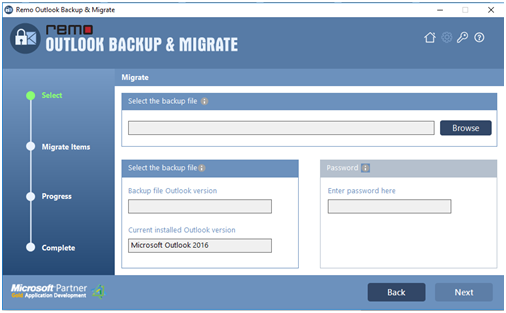
Fig II: Select Backup File to Migrate Tasks
Step 3: Now, select the tasks that are to be migrated and hit on the Next button. Refer to Fig III.

Fig III: Select Tasks
Step 4: After clicking next, the migration process gets triggered. At the end of the migration process, check the summary of the tasks migration.

Figure IV: Migration Status

