Tool for Migrating Microsoft Outlook 2000 to 2007?
The best email client available in today's market is the MS Outlook. Using this software, your emails, contacts, reminders, and many other elements are maintained in an orderly fashion. It makes the job of the Outlook user very simple. There are many attributes in Outlook- calendar, tasks, distribution list, contacts, etc. that makes the usage of the Outlook easy and important. Though there are many Outlook versions available, some users prefer to use the older versions as the features in those versions are sufficient for them. Many of them use Outlook 2000. Well, now if you too are one such user who decided to upgrade your Outlook from 2000 to 2007 then you should carefully perform the email migration process.
Safe migration of Outlook email data
There are many scenarios reported by the users wherein they lost their valuable email data due to some issues while migrating the data. If you upgrade your Outlook or use the Outlook profile without a proper procedure, you may lose your attributes and sometimes the PST file may get corrupted. So here are a few precautionary measures that can help you to avoid PST file corruption.- Avoid multiple users modifying a single PST file at a time. This may corrupt your PST file.
- Do not use unknown or unreliable software to migrate the Outlook. It may damage your Outlook profile.
- Make sure you have a proper backup in case you lose the attributes during the migration of the Outlook else you may lose some important attributes like contacts, distribution list, emails, etc.
However, you can avoid any glitches and perform a risk-free email migration from MS Outlook 2000 to Outlook 2007 using the finest Migrate Outlook software for Windows.
Migrate Outlook- The best Outlook 2000 to 2007 migration tool
- Greatly helps to migrate Outlook 2000 to 2007 PST file and have a backup for all other Outlook attributes without missing a single one
- Provides an option for time scheduling backup i.e., you can create updated backup automatically in a timely order like once a day, twice a week, etc.
- The tool will not modify the original Outlook file. Instead, it creates a new copy of it when you upgrade Outlook 2000 to 2007
- This Outlook 2000 to 2007 migration tool can migrate the highly-encrypted Outlook files password-protected files and compressed files easily within a few clicks
- The app will import the PST files from the older version to a new one safely without modifying it. Thus all the attributes will remain as it is without any modification (except for the upgrade of the Outlook version)
- Outlook Migrate app helps you to create a backup for important attributes individually like for contacts, emails, distribution lists, etc. To know more on creating email backup, click here: https://www.migrateoutlook.com/email-backup.html
- The utility supports to migrate Microsoft Outlook 2000 to 2007 on different versions of Windows OS like Windows XP, Vista, 7, 8, 10, and Windows 2003/2008 Server
- It will help to create multiple backups for the Outlook file as per the user convenience
- Fully compatible with all editions of Microsoft Outlook edition
- The application can even be used to migrate Outlook 2000 to 2010. To know more, click here: www.migrateoutlook.com/2000-to-2010.html
Using Migrate Outlook on Windows system
With all these features, Migrate Outlook software is regarded as the best Outlook 2000 to 2007 migration tool by the industry experts. This toolkit has a simple user interface that lets users carry out hassle-free email migration without any assistance. Nonetheless, the technical support is also made available for 24/7. One can avail a free trial version of this app on any Windows system.
Easy steps to migrate Microsoft Outlook 2000 to 2007
Step 1: Open the Migrate Outlook application on your Windows computer. On the main screen, select the "Migrate" option.

Figure a: Main Window
Step 2: Press on the "Browse" option. Furnish the details of the old and a new version and click on the "Next" to continue.
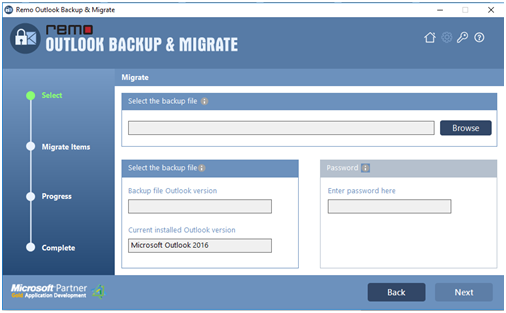
Figure b: Select the backup profile to migrate
Step 3: Mark all the items that you want to migrate, and click on the "Next" as shown in Figure c.

Figure c: Select Outlook Items to Migrate
Step 4: The migration process appears as illustrated in Figure d. Check the summary of the whole process migration by clicking on the View Report option.

Figure d: Backup Summary

