How to Backup Calendar in Microsoft Outlook 2013?
Outlook Calendar is mainly used to mark reminder about any meetings, organizing various office/home events, and help you to organize your plans and set reminders for your future work. But due to the corruption of the PST file, you won’t be able to access the calendar on your Outlook 2013. Since we can’t keep all the calendar events in the mind it is a best practice to take a backup of Calendar as well as other Outlook attributes. Backup is important to avoid any file or data loss of vital data from the Outlook 2013.
Well, backup of the Outlook 2013 calendar can be easily and automatedly created easily with the help of the Migrate Outlook software. Apart from Outlook Calendar, it also allows you to take the backup of various Outlook attributes such as emails, notes, tasks, contacts, journals, personal folders, etc.
When the backup of Outlook Calendar becomes essential
- Virus Attack: Infection of the virus/malware on the MS Outlook 2013 may corrupt the PST file and make your Calendar data inaccessible. In such a case, the created backup data becomes important if you want to access the data that are mentioned on the calendar
- Corrupt Outlook 2013: If you terminate the Outlook abruptly then the PST file may get corrupt. If the PST file gets corrupted then you can’t access the Outlook calendar. In such a situation, it is better if you have the backup of calendar items and other Outlook attributes then you can easily restore the valuable data
Precautionary Measures:
- It is better to maintain a backup Outlook calendar 2013 and other Outlook attributes before performing any unknown tasks in MS Outlook
- Always install a good antivirus on your system to avoid the risk of virus/malware attack to Outlook 2013 PST file
Features of the Migrate Outlook software-
- The software is built using robust algorithms which can backup Outlook Calendar item within a few mouse clicks
- You can do Outlook migration of the created backup from one system to other using this migration Outlook software
- Migrate Outlook software provides you two options for backup the file namely- “Smart Backup” and “Advanced Backup”
- This utility can support different versions of Microsoft Outlook such as 2010, 2003, 2000, 2007, 2013, 2016, and Office 365. Check this link to get more details about backing up Outlook 2010 calendar: https://www.migrateoutlook.com/backup-outlook-2010-calendar.htm
- The software is compatible with all versions of Windows OS such as Windows 10, Windows 8.x, Windows 7, Windows XP, Windows Vista, and Windows Server 2003/2008
- With the assistance of Migrate Outlook software, you can also import Calendar from Outlook 2003 to 2007 and to other higher versions of the Outlook with utmost ease
- Designed with a user friendly interface that guides in every step of the backup and migration process
- Available in a free demo version for free
Steps to Backup Outlook Calendar 2013
Step 1: Download and install the Migrate Outlook software on your system. Click on the "Backup " button if you want to backup the Outlook 2013 Calendar.

Figure a: Main Window
Step 2: Choose either Smart Backup or Advance Backup.
Step 3: Now you need to create a new Backup profile or choose an existing profile to backup Outlook. Once you specify or create the new backup profile click on the "Next" button.

Figure b: Select Backup Profile
Step 4: Continue to choose the Outlook attributes which you want to backup, say, calendar.
Step 5: Upon completion of the backup process, you can view the backup summary by hitting on the View Report button. Press on Finish icon.
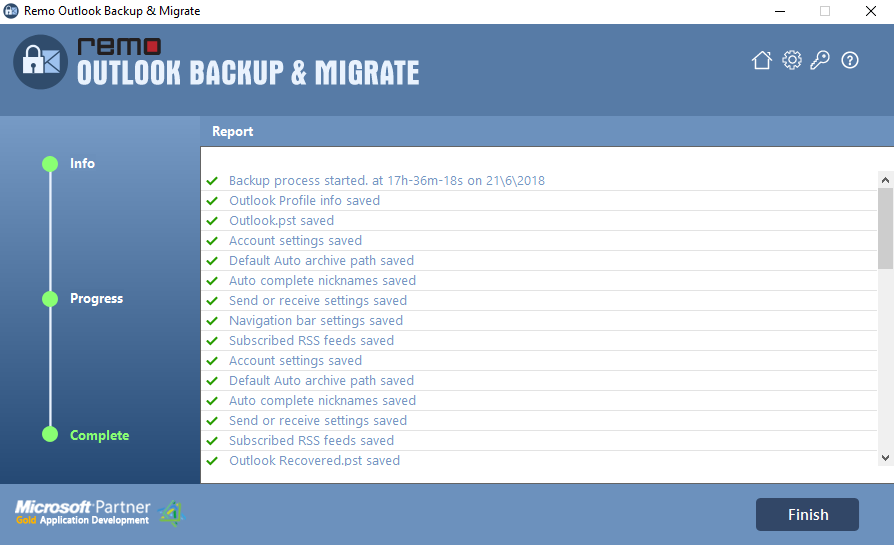
Figure c: Backup Summary Report

