How to Recover Deleted Contacts from Outlook 2016?
In a continually growing business environment, contacts are very important. These contacts could be either an email address or a mobile number. People are using Microsft Outlook for managing their business activity and tasks. It provides many advanced features that help the users to manage their contact list, creates folders as per their need, creates tasks, manages calendar activity, receive and send emails, create rules, schedule emails, work offline, creates new items, filter emails, and many others.
Like the previous versions of Outlook, Outlook 2016 is also uses the data file for sais the Personal Storage Table; also called the PST file and saved on the system hard drive partition with a .pst file extension. However, Outlook 2016 is not free from errors and conflicts. There are instances where many users have encountered the loss or deletion of their important Outlook contact. Upon encountering such a problem, users look to recover deleted contacts from Outlook 2016 at any cost as it can affect their entire business process and may also lead to a big loss.
Common Causes for Deletion of Outlook 2016 Contacts
- While removing other useless contacts from the contact list, users end up accidentally deleting the important Contacts list. Also, the usage of the Shift + Delete key combination removes contacts permanently from Outlook 2016 PST file
- Opening the Outlook 2016 data file using the lower version of Outlook app can also be causes of contacts deletion
- Virus infection on the system drive or if any virus-infected attachment email send by other users, then it will lead to contact deletion from Outlook 2016 PST file
- Sharing the Outlook data file over the internet, header corruption of PST file, operating system crash, registry cleaner, abrupt system termination can also be a reason behind contacts deletion from the Outlook 2016 data file.
Salient Features of Migrate Outlook Application:
- With the help of this highly advanced utility, users can backup of their important emails from Outlook data file created using any versions of MS Outlook including Outlook 2013, 2010, 2003, 2007, and 2000 without any other difficulty
- Migrate Outlook app is fully compatible with all editions of Microsoft Windows operating systems including Windows 10, Windows 8, Windows 8.1, Windows 7, Windows Vista, and Windows XP
- Including Outlook contacts, it is also capable to create a backup and migrate all other Outlook items along with settings, calendar, notes, tasks, journals, etc.
- The tool backs up Outlook data on a daily, weekly, or monthly basis
- Even this ready-to-use utility is capable of migrating Outlook 2016 user profiles from one system to another one just by following a few simple mouse clicks. To know more about it check this page: www.migrateoutlook.com/outlook-migration.html
Steps to Backup Contacts of Outlook 2016 PST File
Step 1: Launch the Migrate Outlook software on your computer.
Step 2: From the main screen options, click on the Backup option.

Figure a: Main window
Step 3: Then opt the Smart Backup button, the software displays the estimated backup file size, and the path of the destination drive, into which it is saving the data, as shown in Figure b. Verify the required size and backup file path, and click on the OK button, to proceed to the next step.

Figure b: File path and expected backup file size
Step 3: Once the Smart Backup process is complete, click on the View Report button to check the backup summary as displayed as shown in Figure c.
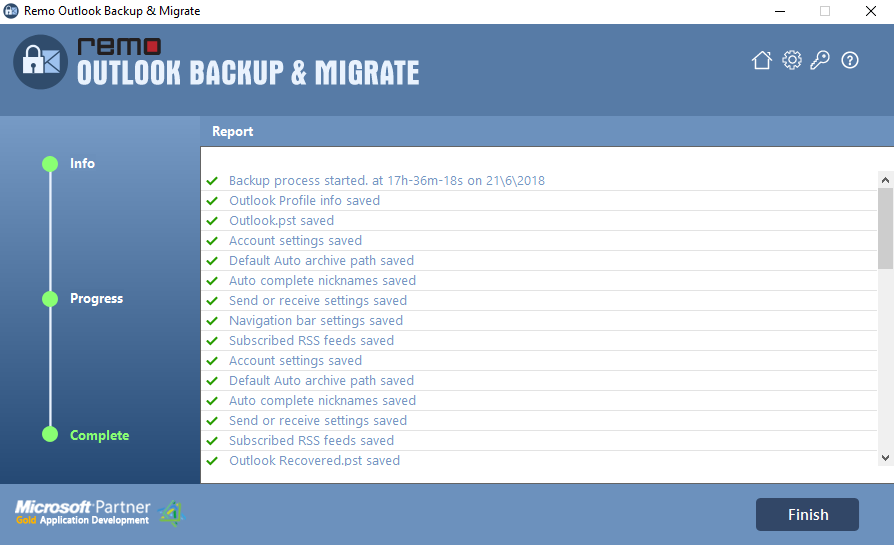
Figure c: Backup Summary

