How to Move Outlook 2013 Data to the New Computer?
“Hello there, I need urgent help. When I tried to Migrate Outlook 2013 to a new computer, I encountered an error and thereby failed to move Outlook 2013 files to the new computer. After this, I tried all other possible ways to migrate Outlook 2013 data, but nothing helped out. Can anyone suggest the best solution to migrate Outlook data? Thanks in advance.”
Microsoft Outlook application includes many other attributes like contacts, tasks, reminders, RSS feeds, calendars, notes, etc. which help the users in various ways. Your Outlook mailbox can accumulate a large amount of data which includes your vital data files and other email entities. Thereby, it proves to be a tricky thing for many users when it comes to safe transferring Outlook data to a new computer.
Why there is a need to migrate Outlook data?
- Upgrade or reinstallation of the Windows operating system requires you to transfer Outlook 2013 data to a new system or any external storage devices
- If the computer is infected with by the virus, then you will need to export Outlook data to new PC so that you can protect Outlook files from getting corrupted
- While upgrading the lower version to the higher version, there is a chance that Outlook files getting corrupted and turn inaccessible.
One can follow the MS Outlook provided instructions to import your Outlook 2013 profile to a new system. However, any interruptions or errors that occurred during the transfer operation (like the one mentioned in the above scenario), will make you get stuck with the Outlook migration process.
The easiest way to move Outlook 2013 data to the new computer
You can avoid all the conflicts that can occur while moving the MS Outlook 2013 to the new system with the help of Migrate Outlook software. It is a highly advanced application that teaches how to move outlook from one computer to another in a convenient fashion.
Features of the Migrate Outlook software-
- Designed with a simple GUI that guides in every step of the Outlook data transfer process
- Efficiently moves Outlook 2013 data files without altering the original content
- Imports the entire PST file on Outlook 2003, 2007, 2010, 2016, and even Office 365
- Fully compatible with all OS version of Windows like Windows 10, 8, 7, Vista, XP, and so on
- This software is capable to move Outlook tasks to new computer within a few clicks
- Even supports to migrate password-protected Outlook files with ease
Steps to Migrate Outlook 2013 to a New Computer
Step 1: Download and install the Migrate Outlook utility on the new computer and then select the Migrate option provided on the main screen.

Main Screen
Step 2: Now browse the Outlook 2013 email backup and press on the Next button.
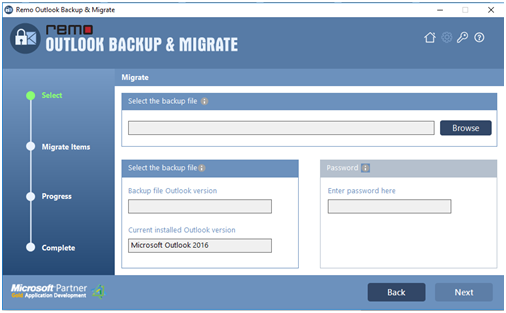
Select the Backup file to Migrate
Step 3: Here in this step, select the items that you to migrate.

Select items to Migrate
Step 4: Finally, the software displays the summary of the migration of Outlook 2013 files as shown in the below figure.

Migration Summary

