How to Recover Deleted Emails from Outlook 2016?
Are you facing your deletion of valuable emails on your MS Outlook 2016? Have you unknowingly deleted your Outlook 2016 emails? The deletion of emails from Outlook 2016 is not a new problem. There are a large number of Outlook 2016 users are facing such issue across the globe. Upon encountering such emails deletion circumstances, you may think about how to recover deleted emails from Outlook 2016. To get the answer to this question, you need a highly efficient third-party program which helps to overcome such problems by taking the backup of your important emails easily. Migrate Outlook is one of the efficient programs which is developed with the help of eminent scanning algorithms to take the backup of Outlook data and recover deleted emails from Outlook 2016 backup file.
Most common reasons behind emails deletion from Outlook 2016
- Sometimes, the user may unknowingly select a few important emails and delete them by using the “Shift + Delete” option. It can lead to permanent deletion of the emails from Outlook 2016
- Abrupt termination of the system due to power fluctuations whilst working with MS Outlook 2016 might delete the emails
- Any virus or malware attacks to Outlook 2016 data file erase delete the emails
- During the sync process of Outlook 2016, if any interruption occurs by which the ongoing sync process gets terminated, then there are major a chance of emails deletion from it
The ultimate solution to undelete MS Outlook email items
You may experience email deletion due to any of the above-stated Outlook email loss instances. In order to restore deleted emails from Outlook 2016, you can take the help of Migrate Outlook software and easily overcome all such circumstances by recovering emails from MS Outlook 2016 backup files without any hassle. Check this page- https://www.migrateoutlook.com/pst-backup.html for full details
Features of Migrate Outlook application
- Built with a simple user interface that helps even a non-technical user to utilize the Migrate Outlook tool and retrieve the deleted emails from the Outlook 2016 from the backup of Outlook 2016 file created by this app without any difficulty
- Compatible with all other versions of Microsoft Outlook such as Outlook 2000, 2003, 2007, 2010, and 2013
- Besides recovering missing emails from Outlook 2016, you can even take the backup and recover deleted Outlook contacts, rules, notes, tasks, calendar events, etc. from the backup files within clicks.
- Supports deleted email recovery in Outlook 2016 on Windows computer running with different versions that include Windows 10, 8, 7, Vista, XP, etc.
- Undeletes emails from Outlook 2016 password-protected PST files can even be regained by using this software
- It scans the corrupt PST file, restores all deleted emails and creates a fresh copy of Outlook PST file without any modifications to the original file.
Steps to backup Outlook 2016 PST file to avoid permanent deletion
Step 1: Launch the Migrate Outlook software on your Windows PC.

Figure a: Main window
Step 2: Once you click the Smart Backup button, the software displays the estimated backup file size, and the path of the destination drive, into which it is saving the data, as shown in Figure b. Verify the required size and backup file path. Click on the Ok button to proceed to the next step.
Figure b: File path and expected backup file size
Step 3: Once the Smart Backup process is complete, a confirmation message is returned. View the backup summary and press on the Finish button.
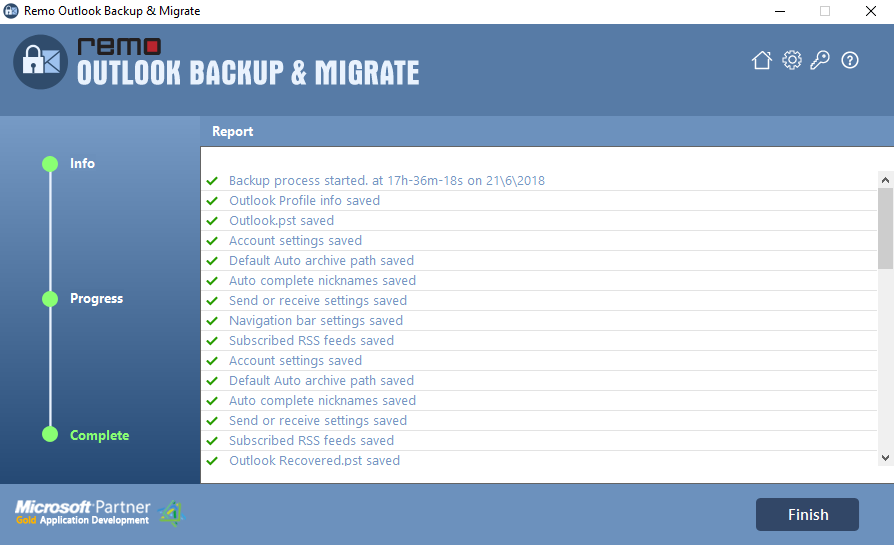
Figure c: Backup Summary

