Simple Procedure to Migrate Outlook from Windows 7 to Windows 8
Are you looking for safe techniques to transfer Outlook from Windows 7 to Windows 8? Well, have you planned to migrate your MS Outlook mailbox from Windows 7 to its next edition version then, this article will completely guide you with the finest solution. Continue reading this page to get complete information to export all Outlook files in a hassle-free way using the Migrate Outlook software.
Most people decide to migrate to the latest version of the operating system due to the advanced features of the version of OS. So just like that, there are various factors where you could think of migrating to the latest version of Windows and Outlook. There are many features, which formulate you to consider the higher Windows OS version or the MS Outlook edition. But there could arise certain issues related to the Outlook that when you continue to work with Outlook data of older version, then might encounter errors due to substantial differences in the registry settings of the Outlook versions. Therefore, if you are using Outlook in Windows 7 then you cannot continue using the same data in Windows 8. It is because the data will not be arranged in a proper mode.
So, to restore all the data of the older version and want to continue with the same data then you need to export all Outlook files from the older version to a higher version and it can be easily accomplished with the help of award-winning Migrate Outlook software. It permits you to export all your emails and other Outlook attributes along with the PST file.
Unique Features of Migrate Outlook software
By using this migration application, you can effortlessly transfer Outlook from Windows 7 to Windows 8 in just a few steps. It is a widely used application that can move your entire Outlook data from the older version to a higher version. In order to migrate Outlook files, the utility takes a backup copy of the PST file of your profile and next, it will permit you to export emails. Even it makes the copy of other elements like contacts, calendar, appointments, reminders, journals and other associated with the profile. This tool is also capable of migrating contacts from Outlook 2003 to 2007.
Read further: Simple steps to recover deleted contacts from Outlook 2016 using the Migrate Outlook program.
The tool is even capable to backup and restores your original MS Outlook settings with ease. The Migrate Outlook tool will allow you to export emails between different computers running on any OS version. This powerful program is an element to safeguard your backup folder by giving it a unique password; thus restricting access to your personal data. This amazing application can be used to migrate Outlook data into a new PC along with profile settings. Check you can also transfer Outlook files from Windows XP to Windows 7.
Suppose if you do not know the location of emails, the software can help you locate the emails by using this migration tool. It also allows you to make four previous restore points to backup prior Outlook states. You can install the demo version of the software on any edition of the Windows PC's. This app is also fully compatible with all editions of Microsoft Outlook program. Furthermore, does not take a huge amount of memory space for the installation process.
Steps to migrate Outlook from Windows 7 to Windows 8 PC
Step 1: Run the software on your Windows system. On the main screen, click on the Migrate button.

Figure a: Main window
Step 2: In the Migration window, browse the relevant Outlook backup file that you would like to migrate. You will need to enter the password in the security check-box (if you have secured your backup file earlier, with a password).
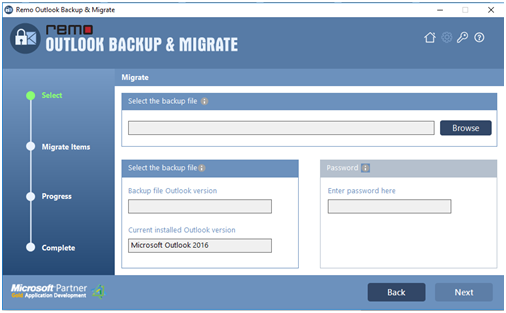
Figure b: Select Backup file to Migrate
Step 3: Click on the Next icon. Then continue to mark the items to migrate.

Figure c: Select items to Migrate
Step 4: You can see the status of the migration process in the next window. The migration summary is displayed once after the successful migration of Outlook data from Windows 7 to Windows 8.

Figure d: Migration Summary

