Transfer Data from Outlook 2007 to 2010
Outlook 2010 is one of the most comprehensive and preferred email clients over Outlook 2007 by millions of users all across the globe. Some of the key features of Outlook 2010 include an Instant Search option, that lets you search for any data instantly. Besides this, Outlook 2010 also provides auto-detection and configuration of the users' email account in the Active Directory.
Migrate Microsoft Outlook 2007 to Outlook 2010
With these advanced and improved features, most of the users wish to upgrade their Outlook 2007 version to Outlook 2010, in order to gain the advantage of the updated newer features as well as specifications. Actually, when you wish to migrate Outlook from an older version to the newer version (e.g. migrate Outlook 2007 to 2010) in the same PC then you can follow well built-in guidelines in the Outlook tool itself. However, manual transfer operation of the Outlook contents could prove to be a tedious job to many. Moreover, there are many reported instances whereby users witnessed conflicts/issues with the email transfer operation and were unable to transfer the entire MS Outlook 2007 data successfully. It is true that any incorrect operations while migrating the Outlook mailbox will give rise to various problems including loss of vital emails.
How to safely migrate MS Outlook 2007 to 2010?
In such situations, most of us start thinking that is it possible to Migrate data from Outlook 2007 to Outlook 2010? If so, then you are in the right place because here is the complete solution i.e. Migrate Outlook software that is capable enough to export Outlook 2007 data to Outlook 2010 within a few clicks. With the help of this award-winning software, you can quite easily backup and migrate the entire Outlook 2007 data file including emails, contacts, calendar items, notes, RSS feeds, etc. to MS Outlook 2010. To know more information on how to migrate the PST file from the older version of Outlook to the newer version, scroll here https://www.migrateoutlook.com/pst-file.html. By using this application you can easily and quickly migrate Outlook 2007 to Outlook 2010.
Certain reasons like severe virus attacks, sudden Outlook application surge, installation of faulty add-ins, and many other reasons you may be unable to Migrate Outlook 2007 to 2010 manually. So, in order to overcome such instances, you can make use of the Migrate Outlook program offers MS Outlook 2007 to 2010 migration in a hassle-free way.
Safely transfer MS Outlook 2007 to 2010 using the Migrate Outlook software
Migrate Outlook is an excellent email migration software that is highly recommended by industry experts. With the aid of this application, you can securely transfer all the emails, contacts, and other MS Outlook 2007 attributes from an old PC to a new system. For complete information on transferring emails from one Outlook profile to the new computer, you can tap here- https://www.migrateoutlook.com/emails-to-new-computer.html. This robust application lets you migrate Outlook settings including the entire PST file from Outlook 2007 to 2010 within a couple of mouse clicks.
This Migrate Outlook Tool also has the potential to transfer Outlook data from Windows 7 to Windows 8 and all the versions of the Windows Operating system. Its neatly crafted with a friendly user interface accompanied with intuitive descriptions makes this powerful software. It also serves as a complete solution to create the entire email backup and Migrate Outlook 2007 to 2010. Also, if you want more information on how to migrate Outlook 2000 to 2010, just visit this link: https://www.migrateoutlook.com/2000-to-2010.html. Alongside creating email backup it also features an option to backup Outlook 2010 calendar, notes, journals, tasks, etc. easily. Furthermore. software facilitates you to password-protect and compresses the backup file in order to minimize the utilization of the disk space.
Precautions:
- Make sure that during the migration of the entire Outlook data and other settings from one PC to another or same, there should not be any interruption like frequent power cuts
- Keep in mind that you have installed genuine antivirus software on your system to avoid the virus attacks or other external threats during the migration of Outlook data
- Use reliable Outlook migration tool to transfer data from Outlook 2007 to 2010
Steps to migrate Outlook 2007 to Outlook 2010
Step 1: Run the Migrate Outlook application on your PC. The home screen appears as shown in Figure A. Select the Migrate button.

Figure A: Main Window
Step 2: Choose the appropriate backup file which you want to migrate by clicking on the Browse button.
Step 3: Enter the credentials in the security checkbox (if you have secured your backup file earlier, with a password), and click on the Next button.
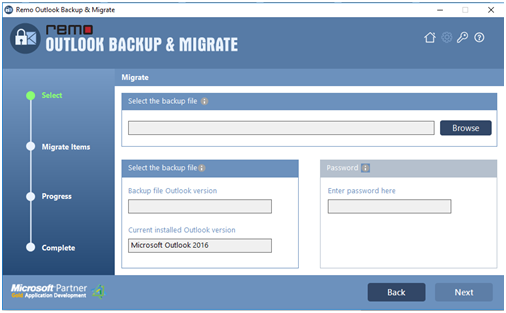
Figure B: Select Backup File
Step 4: Proceed to select the items you wish to migrate as shown in Figure C.

Figure C: Select Items to Migrate
Step 4: The migration process gets initiated as you click on the Next icon. After the migration process is completed, view the Outlook Migration summary.

Figure D: Migration Summary

