Software to Migrate PST File
Microsoft Outlook email application is used to send and receive emails for personal as well as business purposes. The most import thing about this tool is that it creates a private folder for storing it’s all data in central locations which is popularly known as the PST file. For Outlook application this PST file is very important, without this file you won’t be able to access your emails from Outlook. If you want to transfer this PST file to a new computer or higher version of Outlook, then you should be very careful because any modification in this PST file can produce a serious problem for you. For safe and effective migration of Outlook PST files, you can rely on the powerful tool that automatedly backs up Outlook and migrates PST files with ease. Learn more about PST migration: www.migrateoutlook.com/outlook-migration.html.
Need to migrate your PST file
One of the most common reasons why you need to migrate your Outlook PST file is when you want to move your Outlook data to a new PC. In this case, you need to migrate all your Outlook data file that is nothing but PST file to the new computer (on which you are going to configure your Outlook).
Another reason where you need to migrate your PST file is when you have upgraded your Outlook application to a newer version. Whenever you upgrade your Outlook program you need to import your old PST file to a new one so that your old data could be configured with this new tool.
The easiest way to migrate Outlook data files- Migrate Outlook software
Migrate Outlook is a proficient application that is designed by the experts to perform MS Outlook PST file migration secure and convenient. It serves ultimately useful in transferring Outlook emails from one computer to another. This tool also features an option to backup your mailbox. Moreover, it lets you schedule the email backup over a daily, weekly, or monthly basis. If you are eager to learn how this tool backup emails then here is the link that refer to this URL: https://www.migrateoutlook.com/email-backup.html. The intuitively designed user interface guides you in each step of the Outlook backup and migrate process. The software also supports all editions of the Microsoft Outlook editions. Check the best way of backing up Outlook 2016 emails here.
This amazing PST backup software can be installed on any edition of your Windows operating system- Windows 10, Windows 8, Windows 7, Windows XP, Windows Vista, and so on. Other than that just PST files, the software is highly capable to move all your contacts, calendar, notes, tasks, journals, appointments, etc. between any editions of MS Outlook mailbox. Check how to migrate Outlook 2003 contacts to 2007.
Read further- Learn the simple steps to migrate Outlook 2010 PST file to Outlook 2013, by following this URL- https://www.migrateoutlook.com/2010-pst-to-2013.html.
Steps to migrate Outlook PST file
Step 1: Download and install the Migrate Outlook software and then launch the tool. On the main screen select the “Migrate” option as shown in figure a.

Figure a: Main Screen
Step 2: Proceed to select the backup PST file by clicking on the Browse button as shown in figure b and then enter the password.
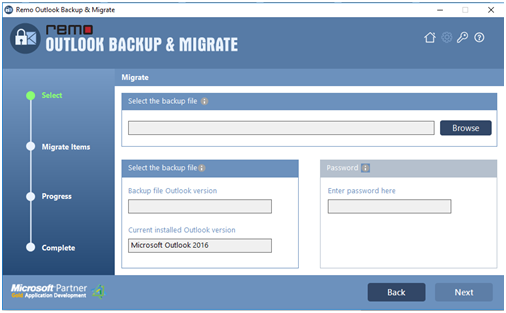
Figure b: Select the backup PST File
Step 3: Now, mark the items that you want to migrate and click on the Next button as shown in figure c.

Figure c: Select Items to Migrate
Step 4: View the progress of PST file migration as shown in Figure d. Lastly, check the migration summary report.

Figure d: Migration Summary

