Backup Outlook Mail
If you are a regular user of Microsoft Outlook, there is always a need to backup your Outlook data at regular intervals, to be on the safer side, and avoid losing out on any important emails. Valuable data on Outlook not only includes important emails, but also other Outlook items like contacts, journal entries, tasks, notes, etc. Loss of such important data on Outlook could be due to various reasons, some of which are given below-
- Loss of emails due to Outlook PST file corruption
- Influence of viruses or malware that makes Outlook data inaccessible
- Accidental deletion of data is another major reason for the loss of Outlook data
- An interrupted email synchronization process
- Incomplete archiving of the PST file could lead to loss of important emails
- Compacting .pst file to save disk space could also result in loss of valuable Outlook data
Though these scenarios cannot be completely avoided however, loss of precious Outlook data can be avoided via regularly backing up Outlook data. The frequency at which backup needs to be taken varies from user to user depending upon the usage of Outlook. A regular Outlook user would like to backup his Outlook mails on a daily basis, while a not so frequent user would do it on a weekly or monthly basis. Doing manual backup using an Outlook backup software is good enough if you are sure that you will not miss out on the task everyday. Well, the best-suited tool to perform a hassle-free Outlook backup operation is the Migrate Outlook software.
Backup Outlook Email using the Migrate Outlook tool
From now on there is no trouble to manually backup Outlook data, one can simply rely on the powerful Migrate MS Outlook software and securely backup all the Outlook data. This software lets you backup Outlook mail regularly with the help of its powerful in-built scheduler, that lets you schedule the Outlook backup over a daily, weekly, or monthly basis.
With the help of this easy-to-use software, you can perform backup Outlook mail profile data just by following few simple instructions easily. You are also provided with the options to compress the backup file, and even password protect the email backup file. Migrate Outlook tool software also features a Migrate option that lets you easily transfer Microsoft Outlook tasks, PST files, calendars, journals, notes, and other attributes of Outlook. This will be ultimately helpful to users who need to move their Outlook data from one system to another or looking to upgrade to a higher edition of MS Outlook. Check here- how to migrate Outlook 2000 to 2007 in a very few simple steps. In addition to this, the Migrate Outlook tool is fully compatible with all the latest editions of MS Windows and MS Outlook application.
Further reading- For a better understanding of migrating Outlook 2007 to 2010, you can tap here: www.migrateoutlook.com/2007-to-2010.html.
Steps to backup Outlook emails
Step 1: Start Migrate Outlook software on your system. From the main screen options, click on the Backup button.

Figure a: Main window
Step 2: Choose either Smart Backup or Advance Backup.
Step 3: Then in the Create/Manage Profile window, choose the existing profile or create a new backup profile.

Figure b: Select a Backup Option
Step 7: Once the Backup process is complete, a confirmation message gets displayed. Go through the backup summary by clicking on the View Report button.
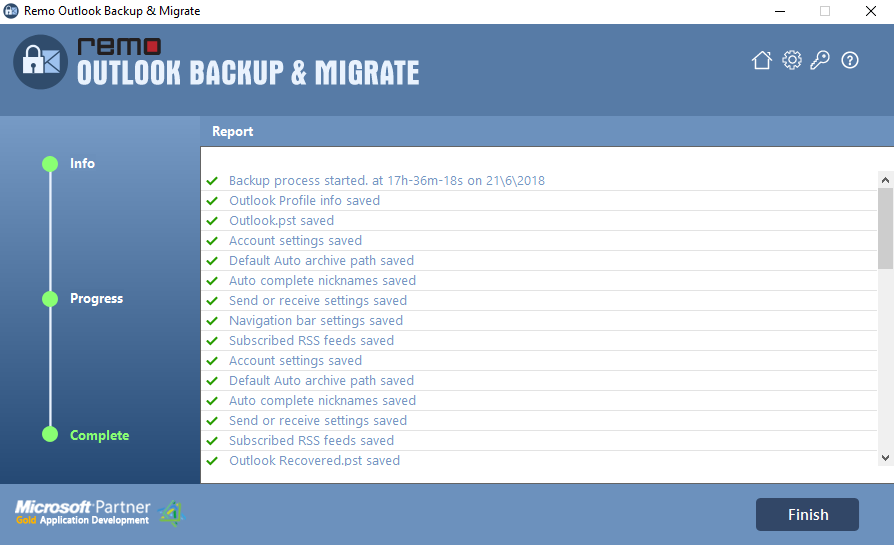
Figure g: Backup Summary

